How to Make a Finger Frame Cartoon Effect
Turn the area between your fingers into a cartoon without uploading your camera feed. A practical guide to framing, lighting, selection, and export.
 Evan Reed
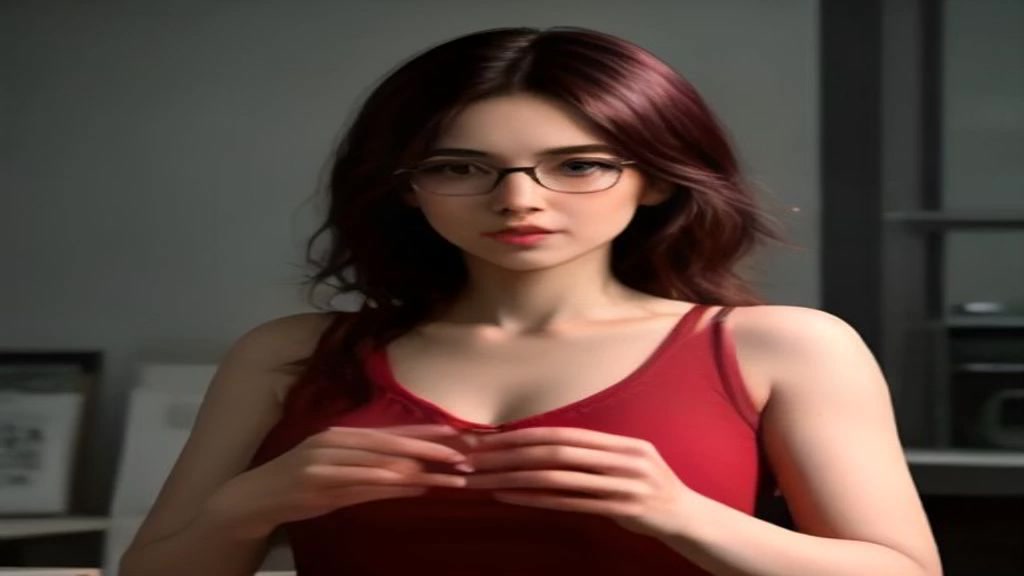 AI-generated demo image
A finger frame cartoon effect works because the gesture gives the viewer two ideas at once: this is the part to watch, and something different is about to happen here. The strongest version is not a full-screen filter. It changes a clear region while the surrounding shot stays familiar.
FingerFrame AI lets you build that shot directly in a browser. The fast path uses an on-device effect, so you can rehearse the crop and timing without an account or upload.
Start with a readable frame
Face the camera and raise both hands. Use the thumb and index finger of each hand to suggest four corners. The rectangle does not need to be perfect. It needs to be stable enough for the tracker to understand the intended area.
For cleaner tracking:
- use soft front lighting;
- keep hands away from a similarly coloured background;
- leave space between fingertips; and
- start with a frame larger than the face or object you want to select.
Once the frame locks, you can lower your hands. The last stable selection remains, which makes it possible to perform naturally after setting the shot.
Use manual selection when the gesture is not the point
The gesture is visually satisfying, but it should never block the effect. Drag a box with a mouse or touch when only one hand is visible, the camera crops your fingers, or motion blur confuses the detector. If you do not select anything, the studio starts with a central subject area.
Manual framing is especially useful for product shots. You can keep packaging and hands natural while applying the cartoon treatment only to a label, screen, or object.
Preview before generating
Choose Cartoon in local mode. The preview simplifies colour and detail inside the selection while leaving the rest of the frame untouched. Try moving or resizing the box before recording. This costs no credits and keeps the media on your device.
The Comic, Funny, and Anime controls are useful comparison passes. A high-contrast source often works best with Comic, while a face in soft light usually reads more clearly with Cartoon or Anime.
Export for short-form video
For a still image, save the current frame. For camera or video input, record a short clip. Use a simple beat:
- show the unedited subject for a moment;
- make the hand frame;
- let the selected effect appear; and
- hold the final pose long enough for a clean cut.
When the browser exposes the source audio track, FingerFrame includes it in the recording. Browser support determines the exact video format, so play the downloaded file once before uploading to a social platform.
When to use generative AI
Local Cartoon is best for instant feedback and privacy. Use hosted Gemini only when you want the selected subject to be redrawn across a short moving clip rather than colour-styled in the browser. Sign in for a private output that passes prompt and result moderation.
Set the crop and timing locally first. Generative processing is slower and has a real model cost, so the free local preview is the right rehearsal tool.
Ready to try it? Open the FingerFrame AI studio or read the complete finger frame effect walkthrough.